Report Generator

Enter a Score. Get a Finished Report.

Here's exactly how the generator works — no vague "AI magic" pitch, just the actual steps from evaluation scores to a printable, parent-ready report.

Start Free See the Full Product Tour

How the Generator Works

1. Score Four Vectors

Academic Mastery, Cognitive Growth, Behavioral Engagement, and Task Execution — one slider each.

2. Pick an Audience

Generate a Parent Report Card, an internal Teacher Diagnostic, or a Student-facing version from the same scores.

3. Edit, Save, Export

Adjust the draft directly, then save, print, or export to PDF.

SEE IT GENERATED

Real Output, Not a Mockup

This is an actual generated report — the internal Teacher Edition, with the same scores read as a diagnostic instead of a parent-facing summary. Switch between the Parent, Teacher, and Student versions on the homepage to see how the same data reads differently for each audience.

See a Real Sample Report
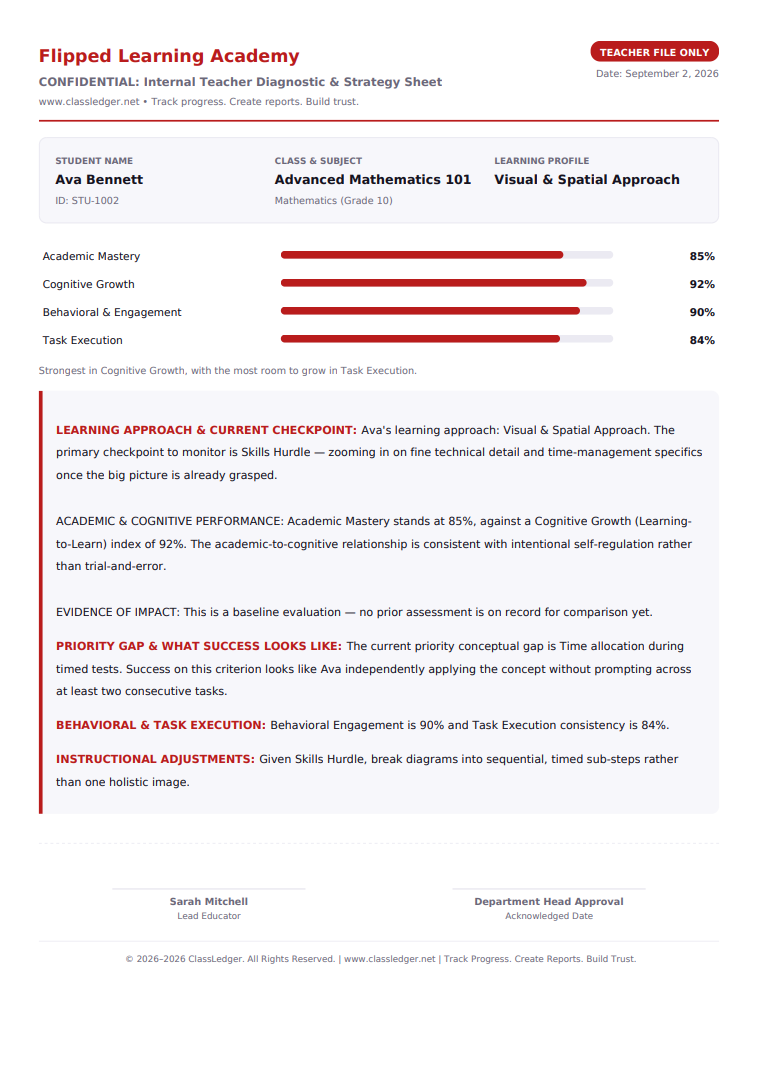
Real ClassLedger progress report in Teacher Edition, showing the confidential internal diagnostic and strategy sheet for student Ava Bennett

Generator Questions

What file formats can I export a generated report in?
Reports can be viewed in-browser, printed directly, or exported as a PDF for emailing or filing.
Can I customize a report before generating it?
Yes. You can adjust the evaluation scores, add a teacher note or parent-guidance tip, and pick which audience version to generate before saving.
Does the generator work for report cards, or just narrative write-ups?
It produces a narrative progress report built from four scored evaluation vectors (academic, cognitive growth, behavioral engagement, task execution) — a written report, not a traditional letter-grade report card, though the underlying scores can inform one.

New to ClassLedger? See ClassLedger for Teachers. Curious how the AI stays honest? See AI Progress Report Generation.

Generate Your First Report

Free to start — no credit card required.

Start Free