One Dashboard for the Whole Term
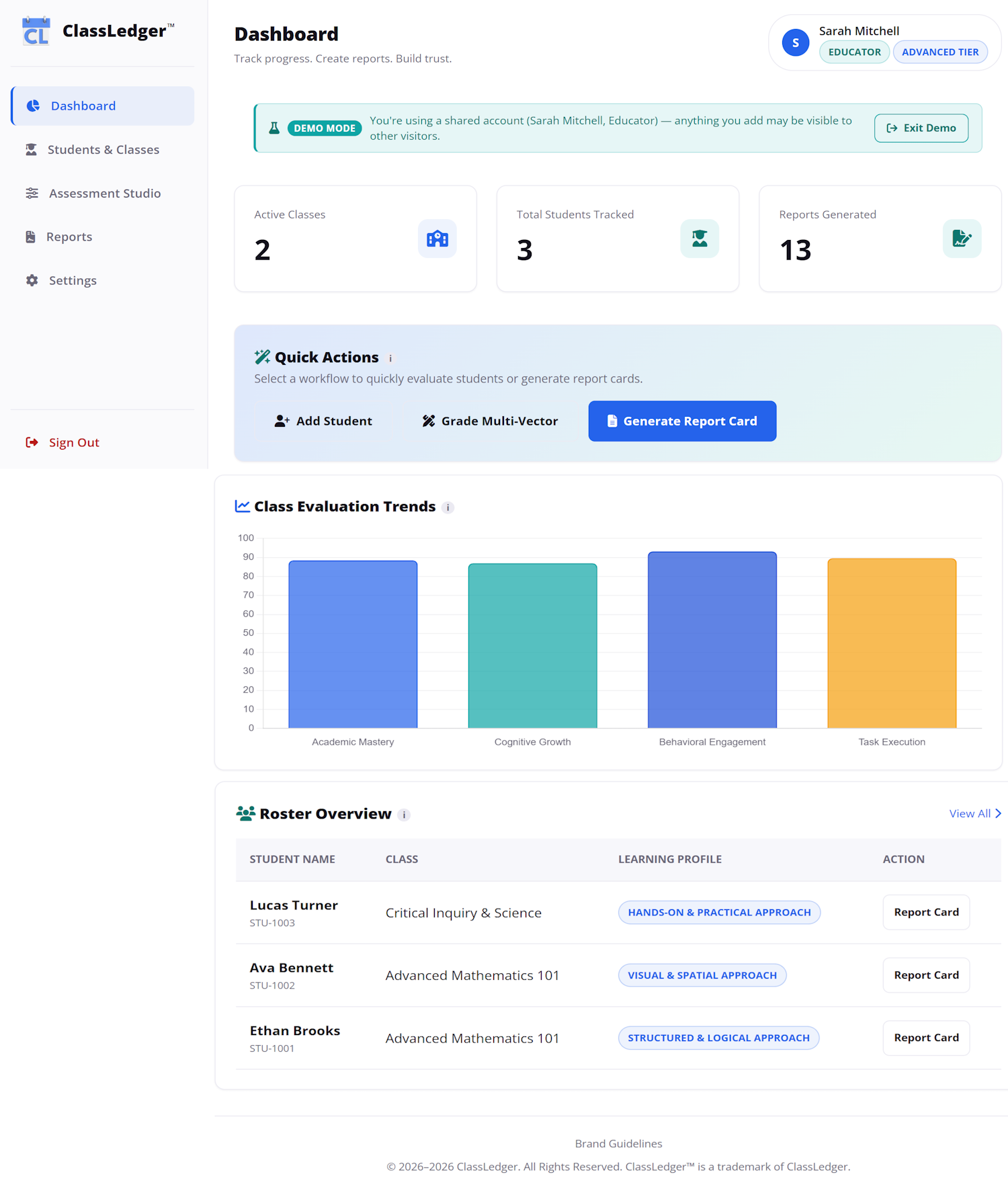
Active classes, students tracked, reports generated, and a class-wide evaluation trend chart — everything you need to check on is right there the moment you log in.
Here's exactly what happens inside ClassLedger, from adding a student to handing a family a finished PDF.
You already know how your students are doing — it's in your grade book, your notes, your memory of last week's class. ClassLedger turns what you already know into a professional report families can actually read, in minutes instead of another lost evening.
Active classes, students tracked, reports generated, and a class-wide evaluation trend chart — everything you need to check on is right there the moment you log in.
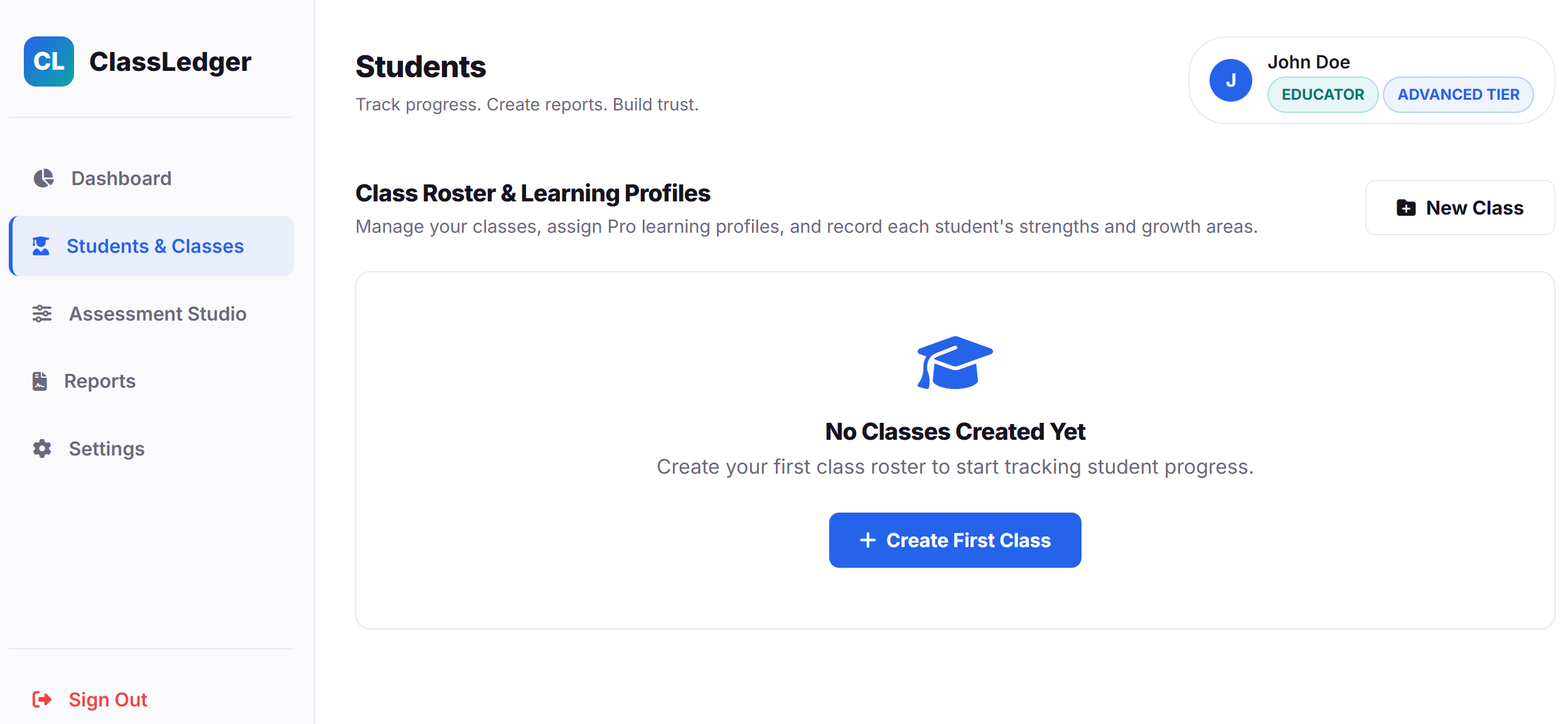
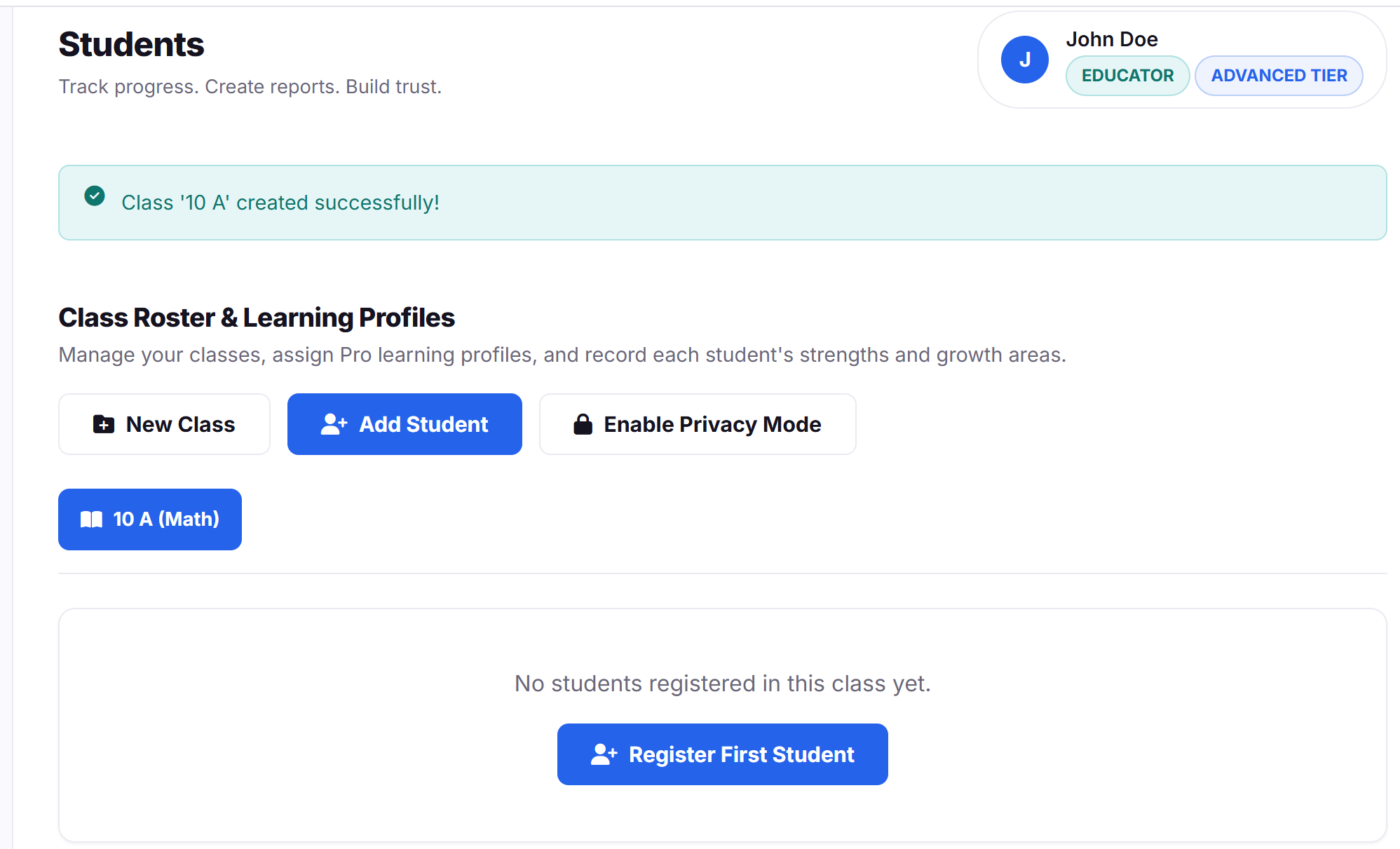
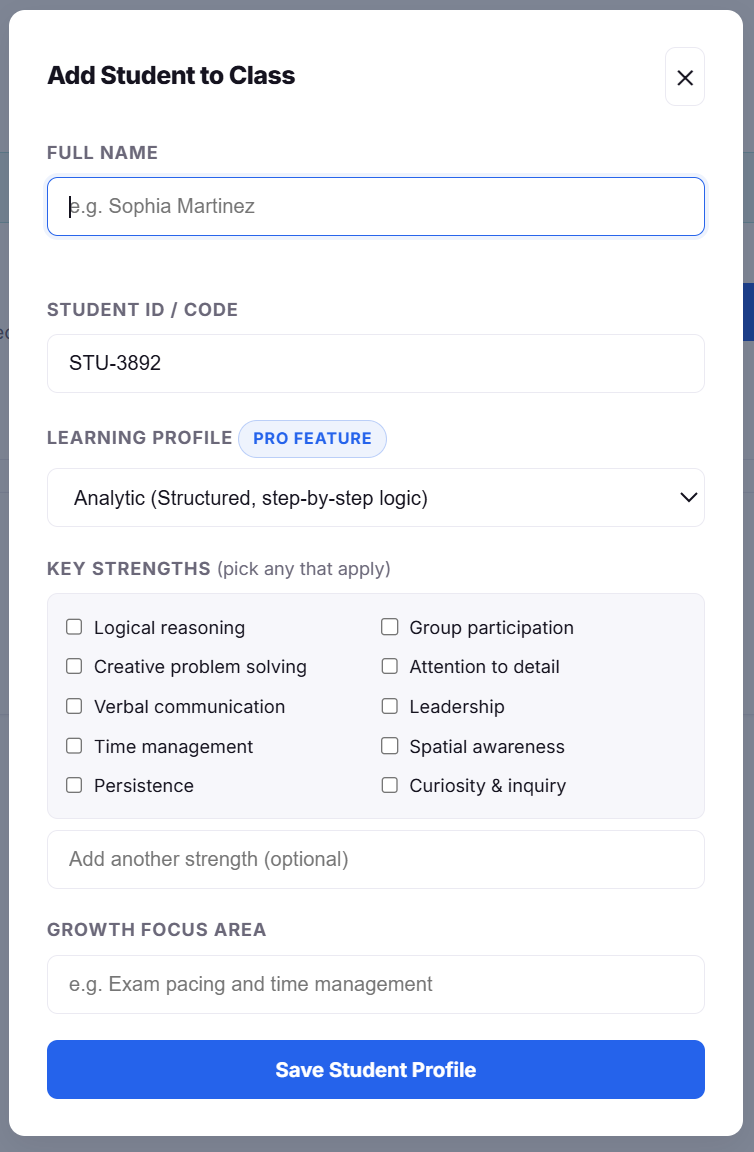
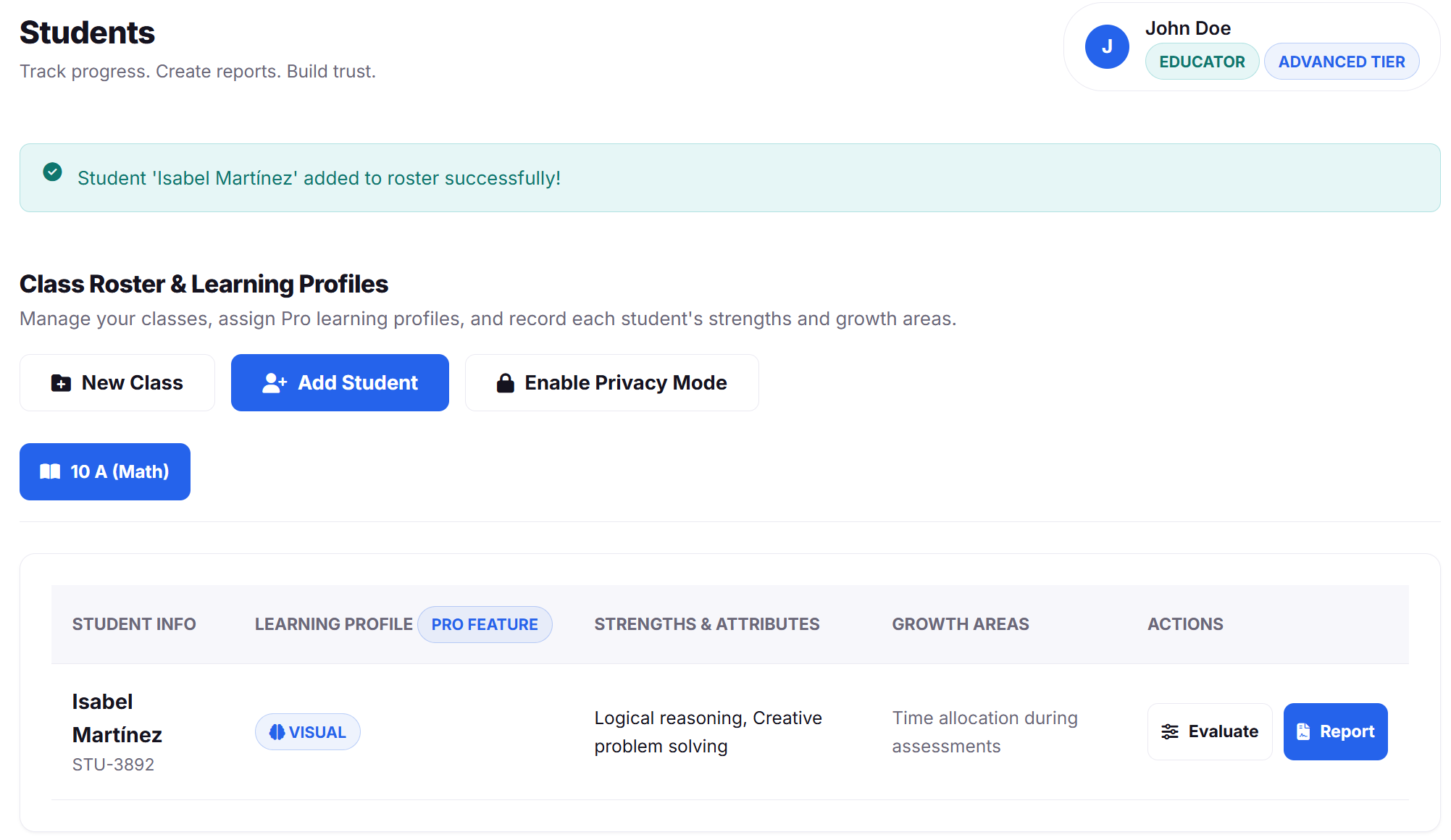
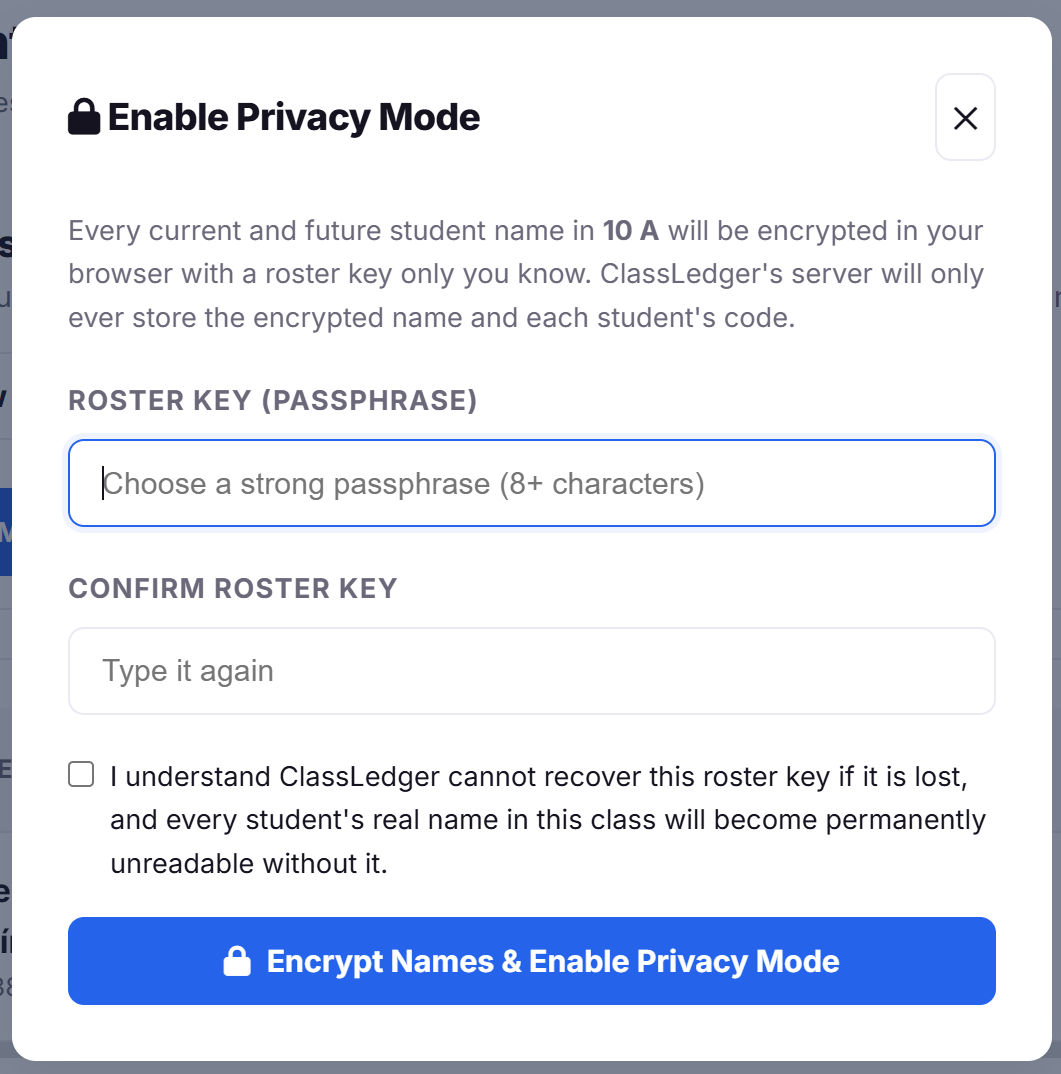
Create a class with its subject and grade level, then add students one at a time — full name, an optional student code, and a learning-approach profile that later shapes how the AI drafts each report. Turn on Privacy Mode for any class and student names are encrypted client-side before they ever reach ClassLedger's servers.

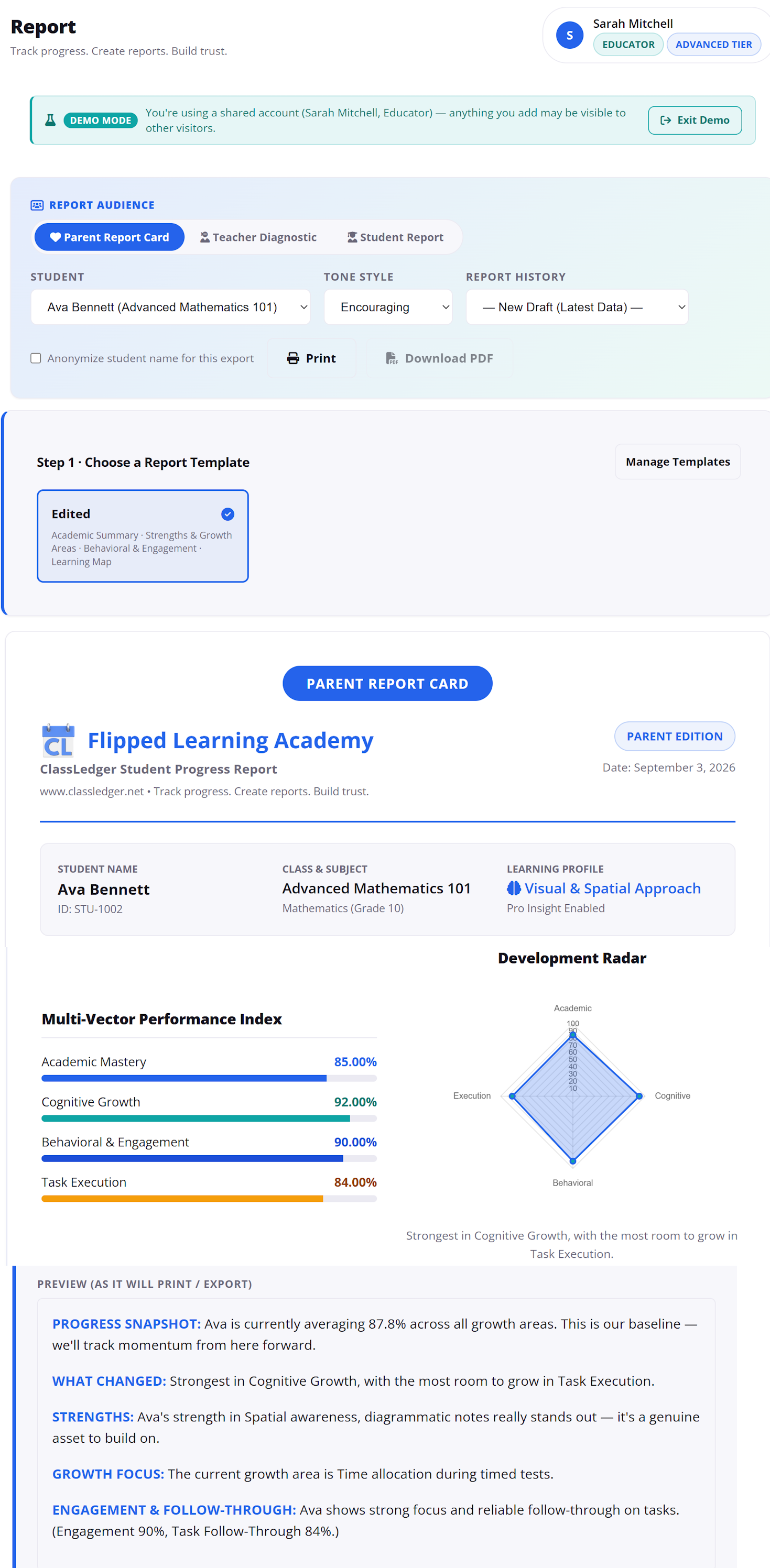
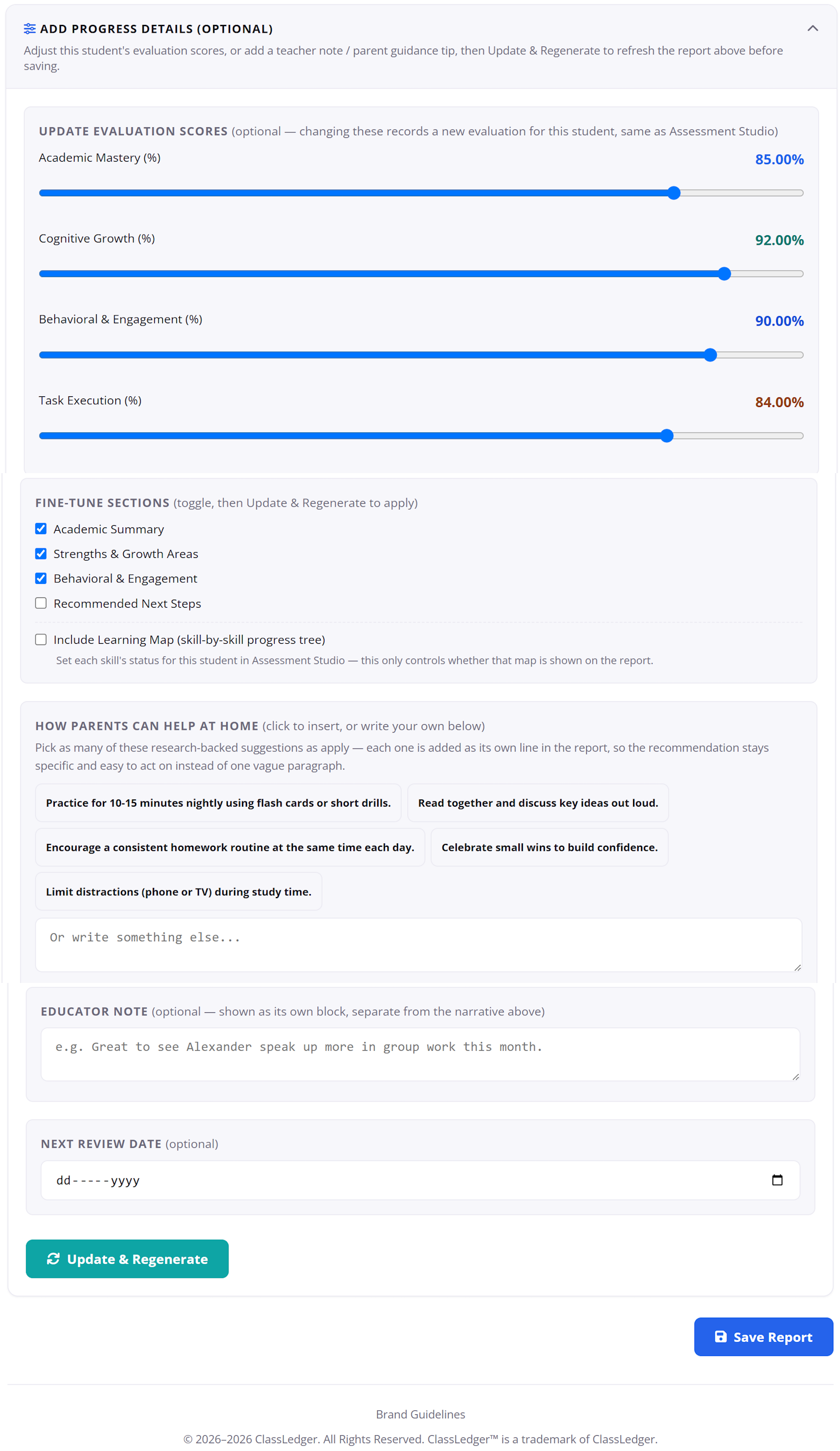
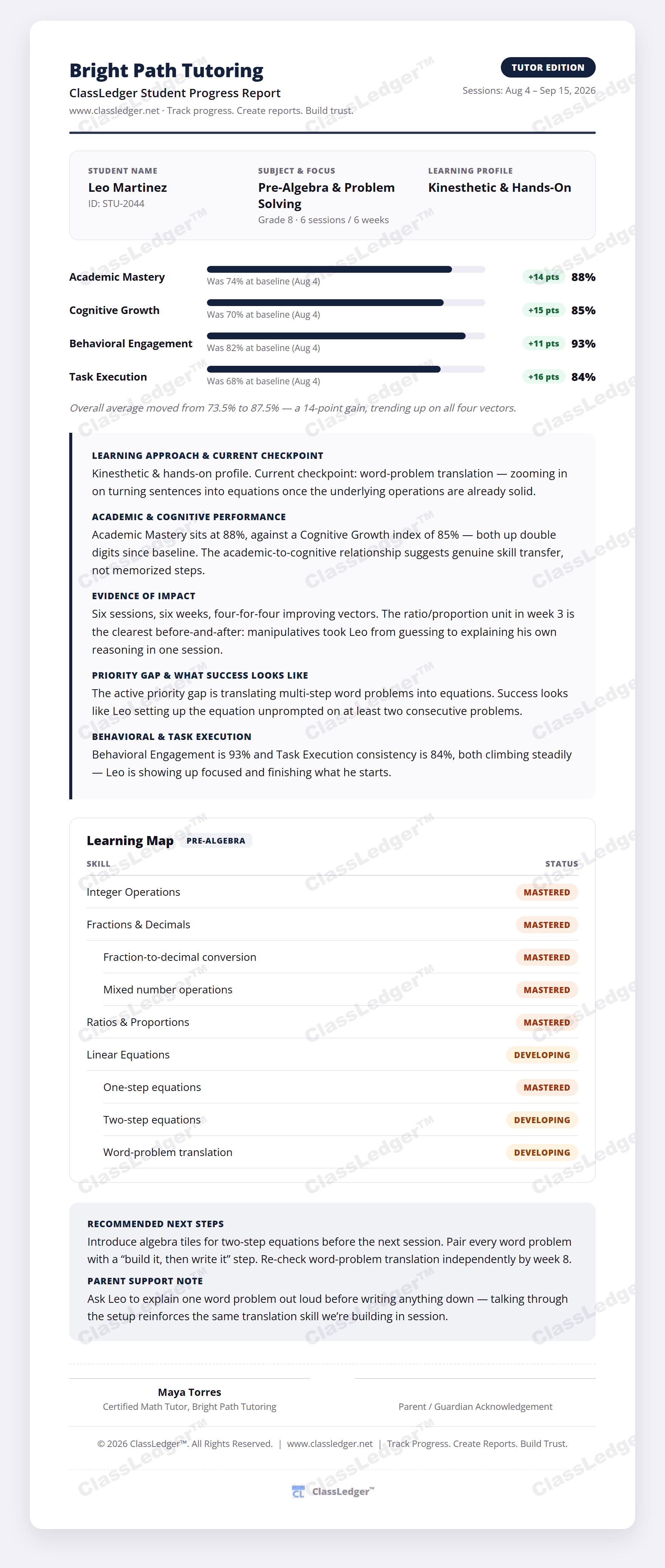
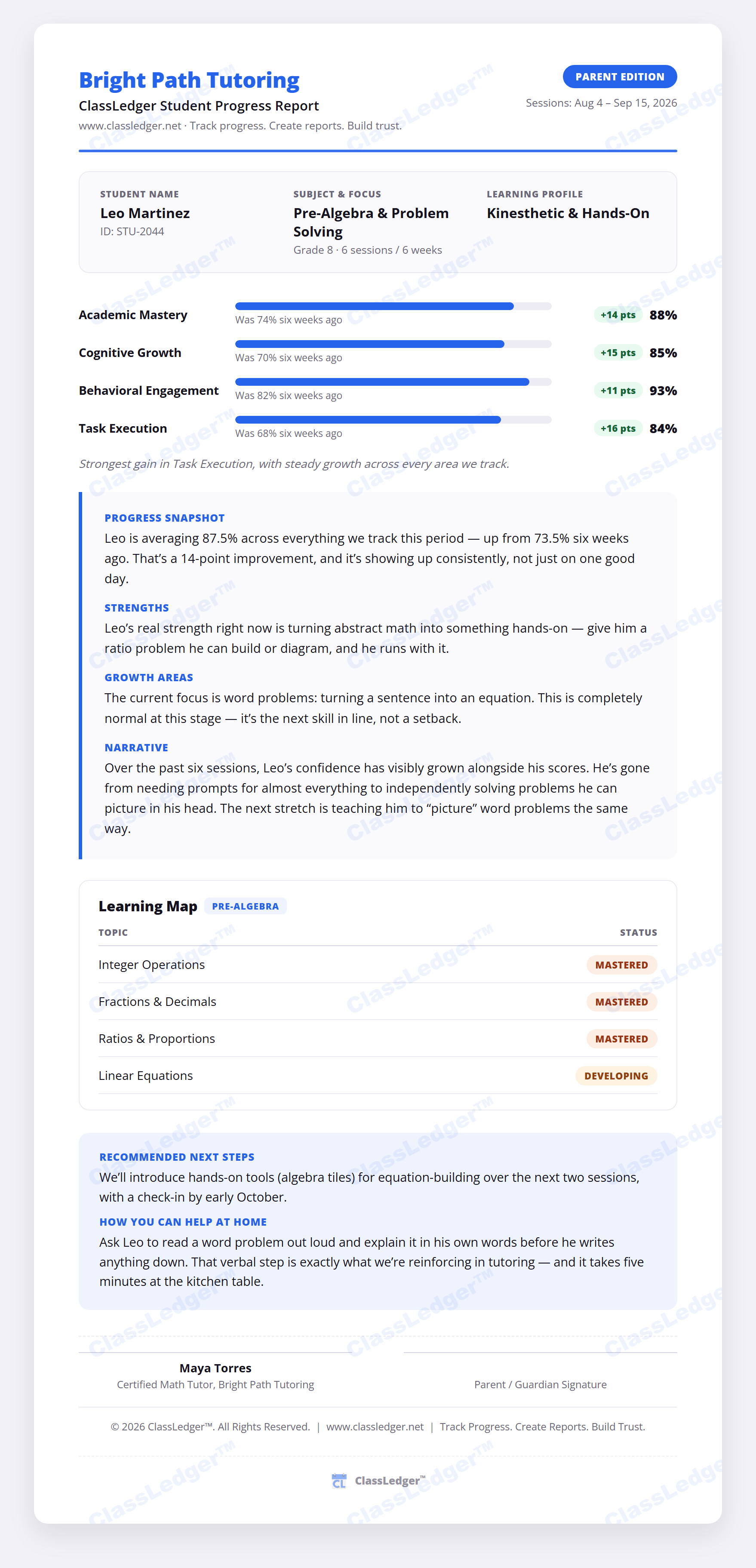
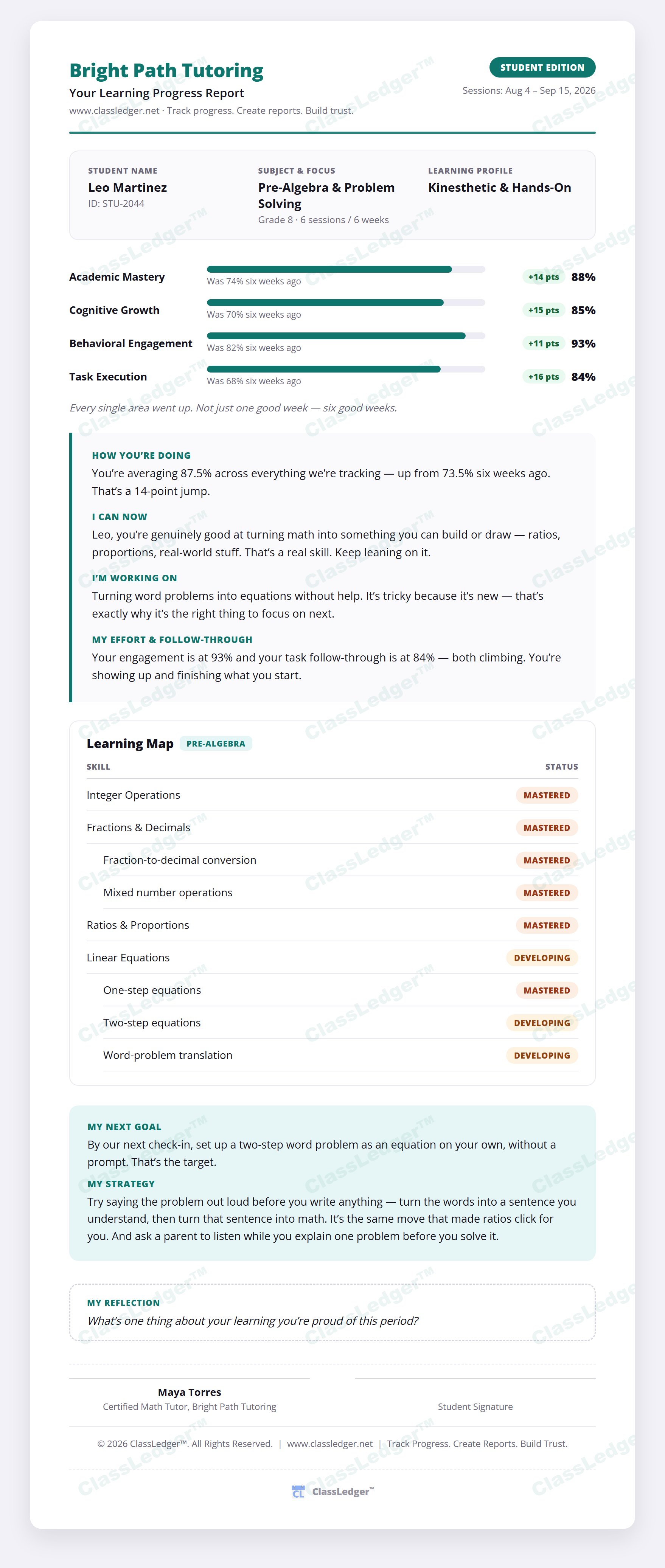
Score each student across four vectors, pick a Parent, Teacher, or Student edition, and ClassLedger drafts a narrative that highlights strengths, growth areas, and concrete next steps — editable before you print, download, or share it. Nothing is final until you've reviewed it.
See a full sample report in all three editions →
ClassLedger uses AI to help turn student data into a clear, editable first draft — never a final word. Source records go in, a draft narrative comes out, and nothing is shared until an educator has looked at it.
AI never decides a student's grade — that judgment and decision belong to the educator.
AI works only with the data you enter.
You can edit or rewrite anything AI suggests.
Every report passes through your approval before it's shared.
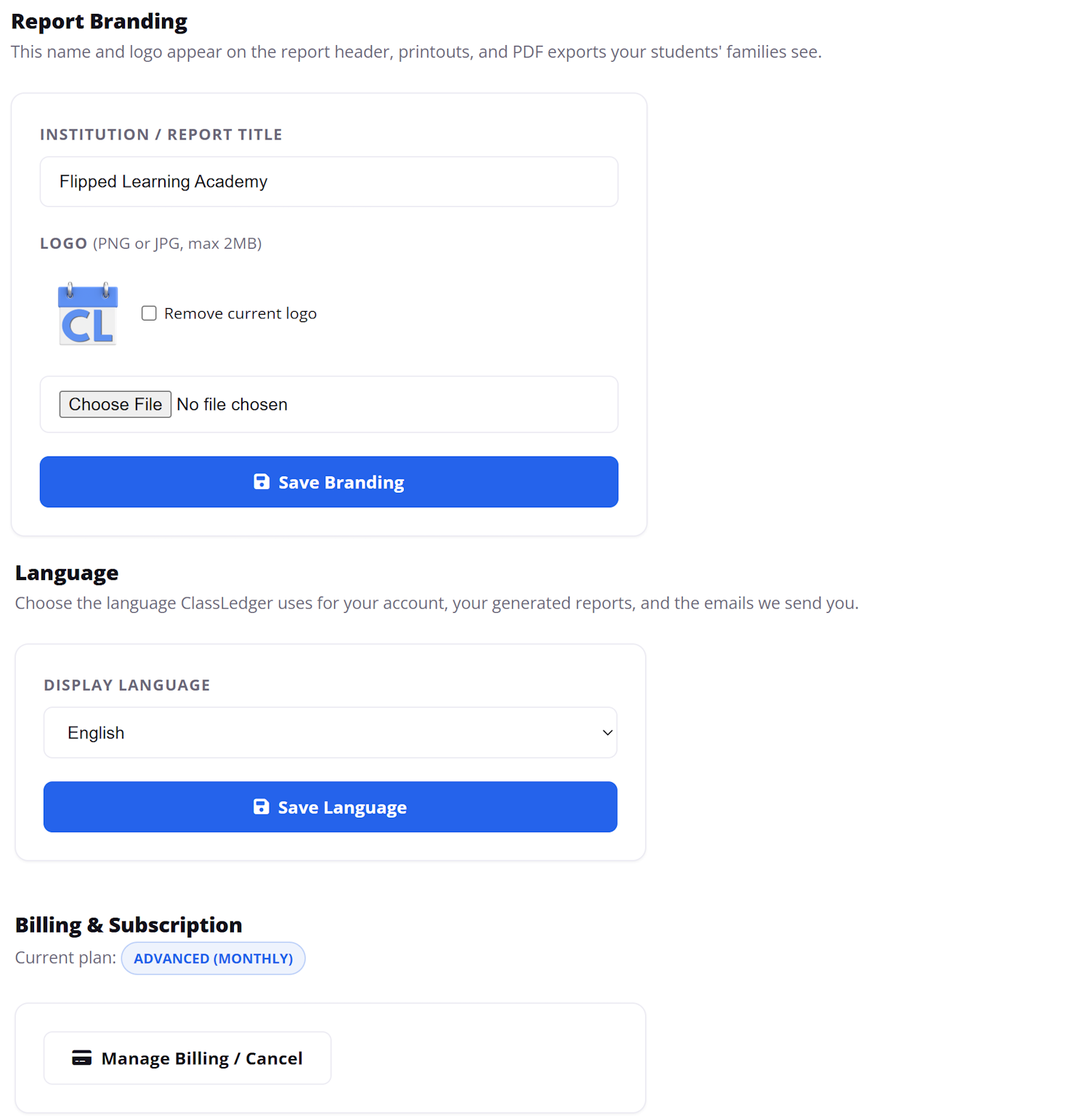
Add your institution's name and logo once, and every report, printout, and PDF export carries it automatically. Set your display language and manage billing from the same Settings page.
Jump straight into a live, pre-loaded ClassLedger account. Same product you just saw, nothing to install, nothing to fill out.
One-on-one or small group, the flow above is identical. Here's an illustrative example — six tutoring sessions, one student, all three editions, each one adding to a record of progress you and the family can look back on.
Start free — no credit card, no time limit on the Starter plan.